
Install and update AppImages straight from GitHub.
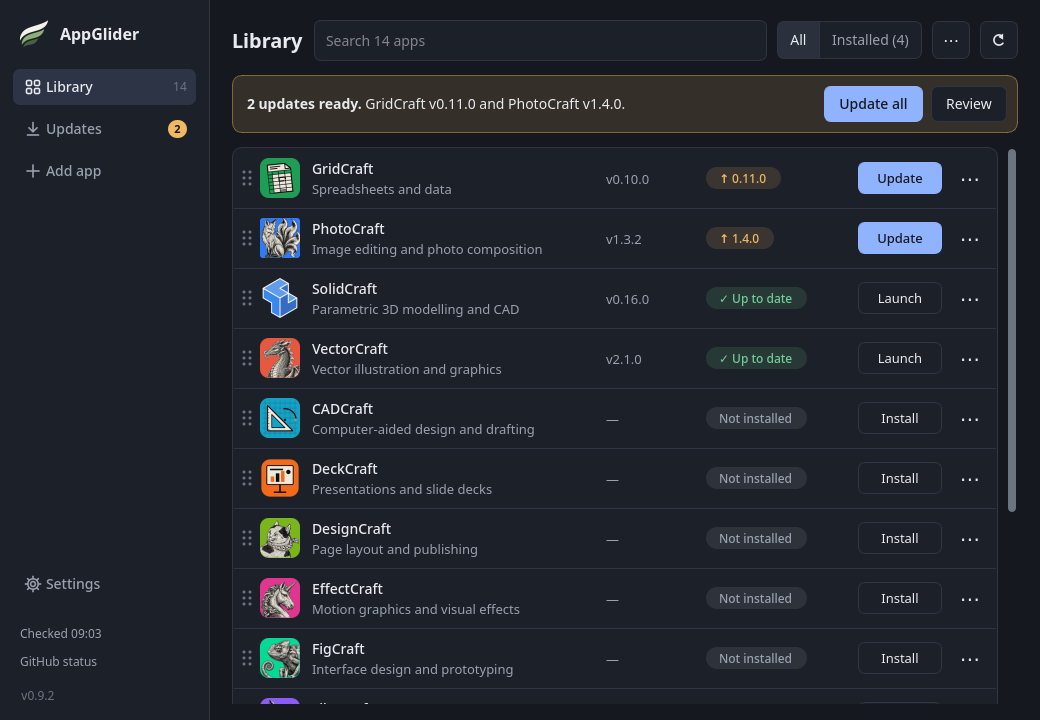
AppGlider is a free AppImage manager for Linux. It installs AppImages from GitHub releases, checks each download before it runs, keeps your menu tidy and lets you roll back.
x86_64 AppImage · GPL-3.0-or-later
What it does
-
Checked before it runs
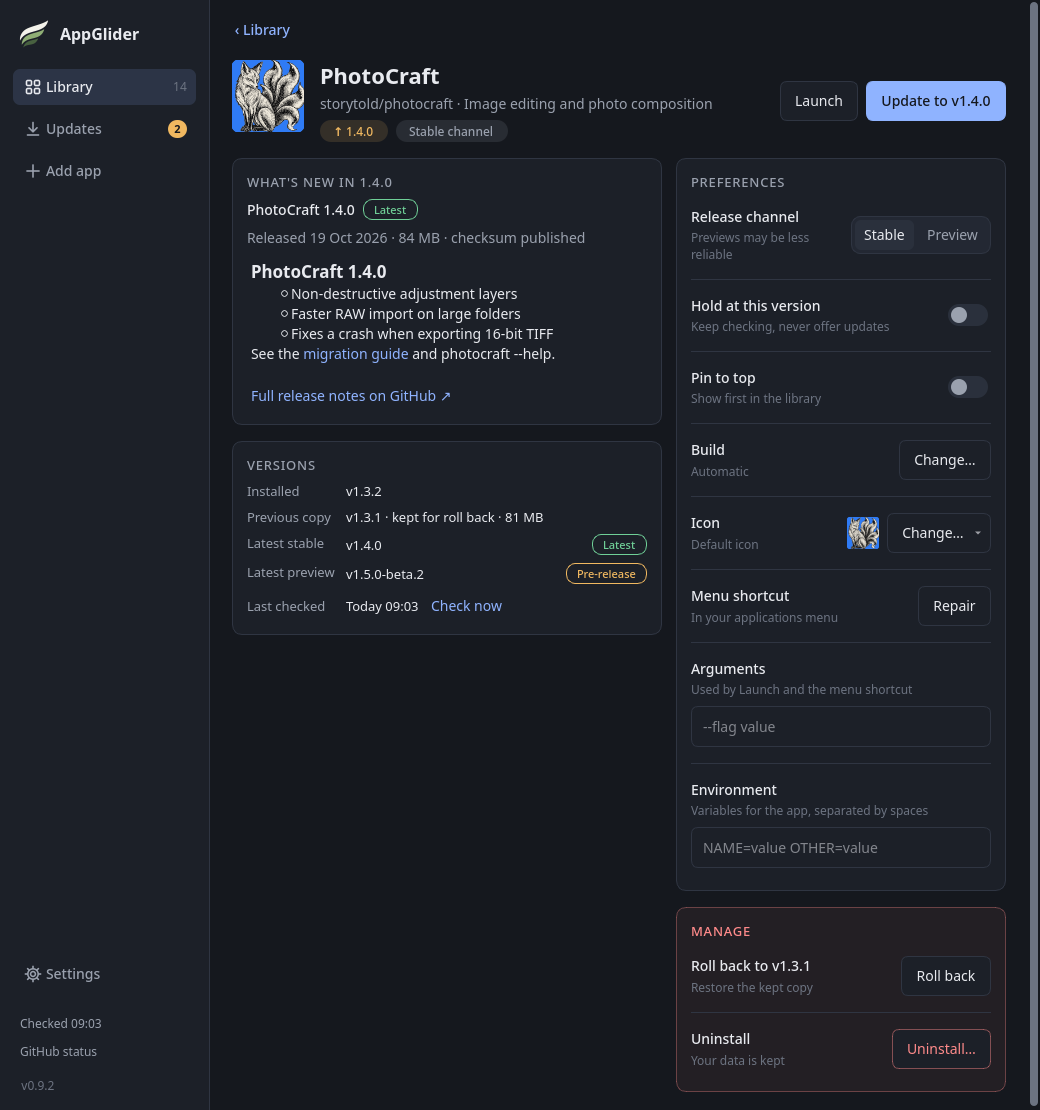
AppGlider needs a published SHA-256 checksum. Before an install is used, it checks the download against it, along with the file size, the AppImage header and the CPU type. A failed or cancelled download leaves the current version alone.
-
Roll back in one click
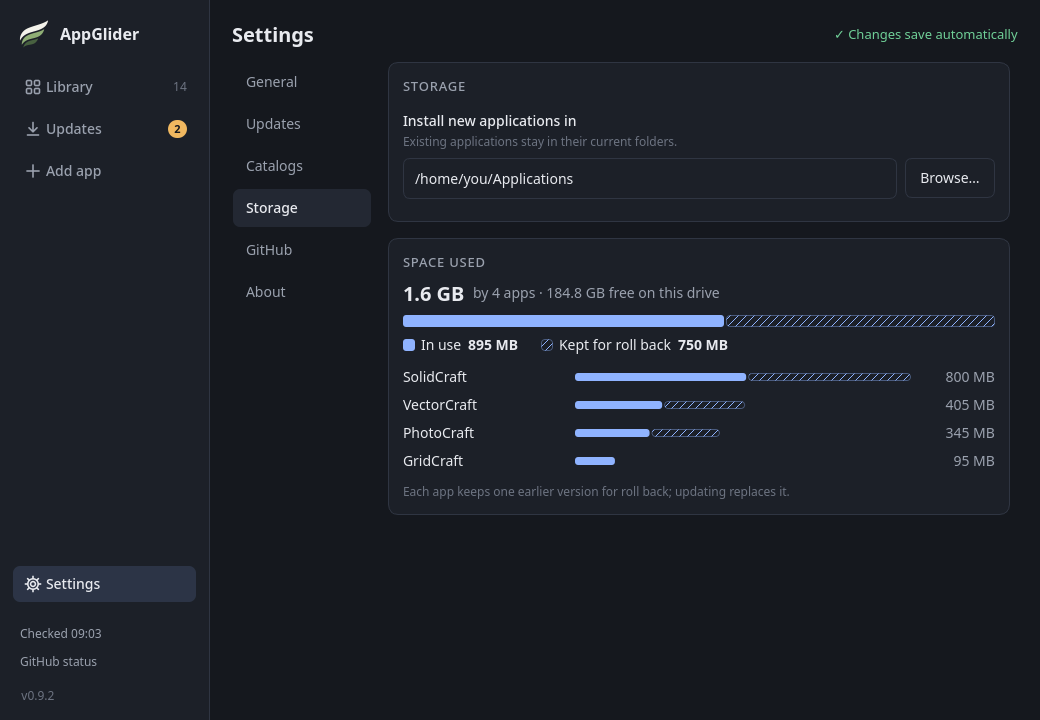
It keeps the previous version of each app. If an update misbehaves, roll back from the app's page or its menu. The Storage page shows how much space those kept copies use.
-
Any GitHub repository
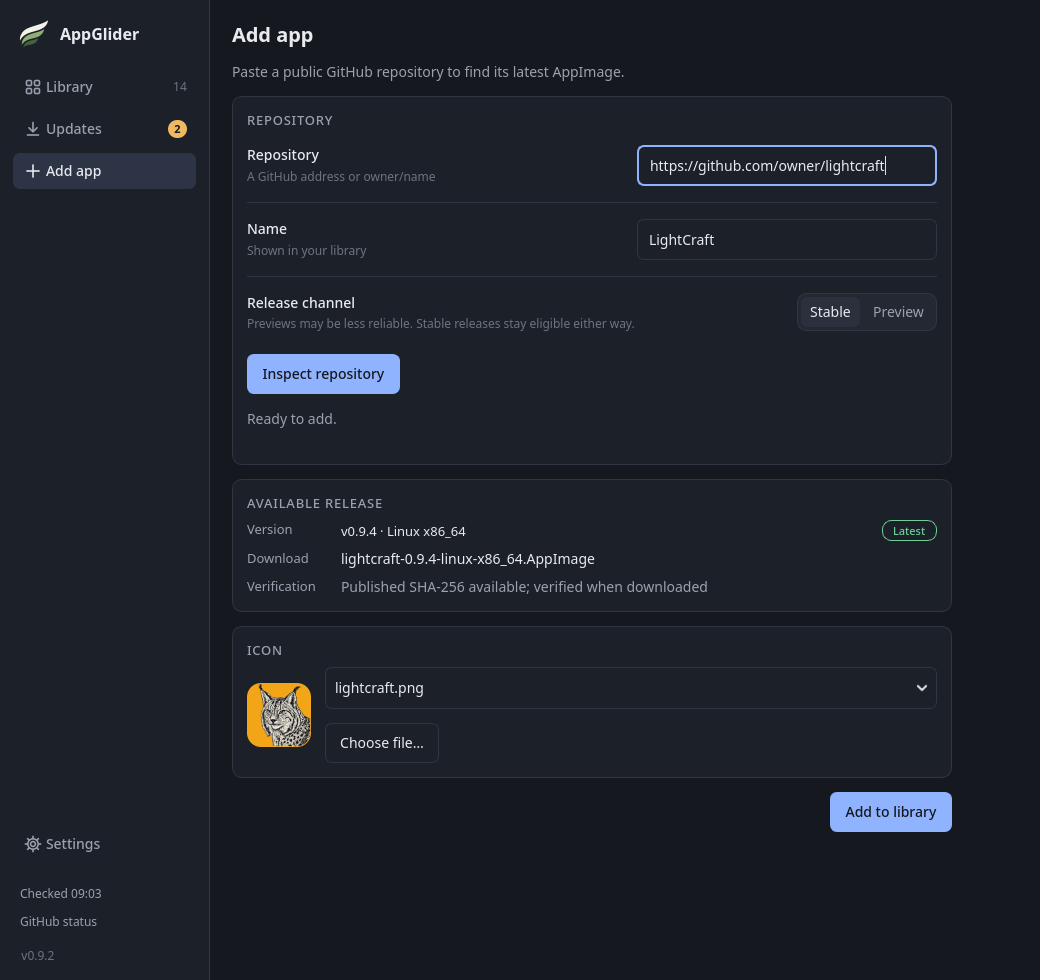
Paste a public repository address to add it. Choose stable releases or previews for each app, and pick a build when a release has several. Share your list as a plain-text catalog.
-
Menu entries that fit
Each entry uses the app's own category, file types and window class. You can set launch arguments and environment variables for each app.
-
Easy on GitHub's limits
Routine checks of stable apps read GitHub's latest-release redirect instead of the API. The API is used when a new version appears, or when you add, inspect or install an app. No account or token is needed.
-
Keeps itself up to date
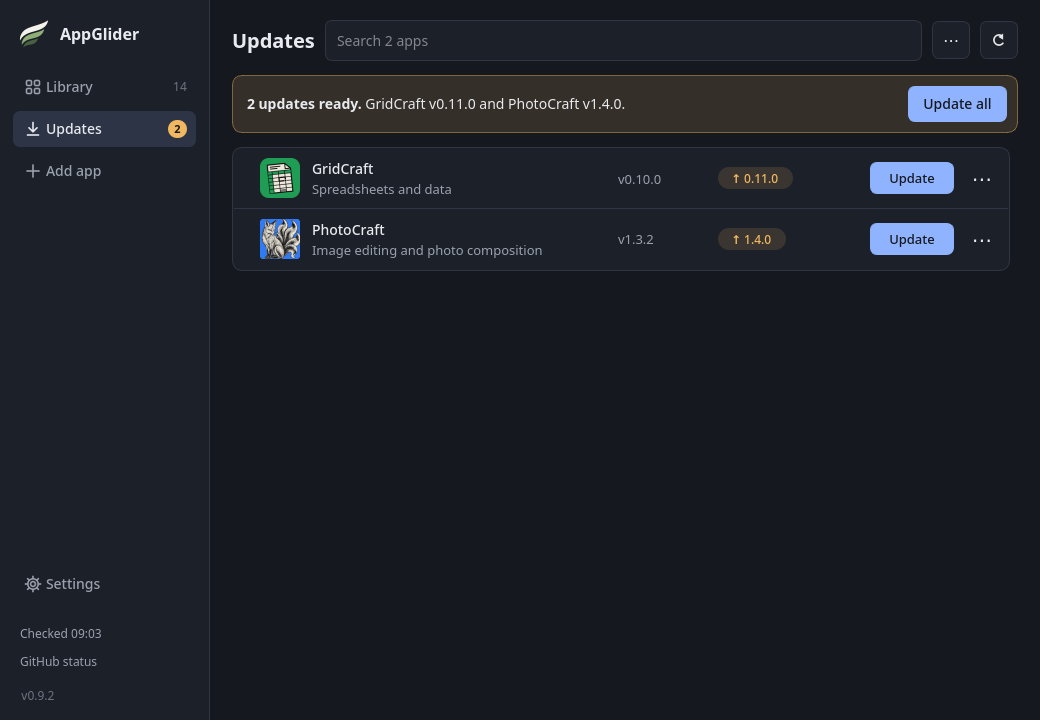
AppGlider offers its own updates too. It can sit in the system tray, check on a schedule you choose and, if you turn it on, send a desktop notification when updates are found.
Install
-
Download
Get the
AppGlider-…-x86_64.AppImagefile from the latest release. Keep it somewhere permanent, such as~/Applications. -
Make it runnable
chmod +x AppGlider-*-x86_64.AppImage -
Run it
./AppGlider-*-x86_64.AppImageIt adds itself to your application menu.
You need a 64-bit (x86_64) Linux desktop about as new as Ubuntu 22.04 (glibc 2.35 or newer). Everything else is included.
If it will not start and the message mentions FUSE, see if something goes wrong in the guide.
On Nix, run:
nix run github:Vyrnexis/AppGliderThe flake is contributed by the community and is not tested on aarch64-linux.
Check your download
Each release has a SHA256SUMS.txt file. Download it into the same folder as the AppImage, then run:
sha256sum -c --ignore-missing SHA256SUMS.txtIt should print OK next to the AppImage's name.
Questions
How is it different from Gear Lever or AppImageLauncher?
Both put AppImages in your menu and keep them updated. Gear Lever, a Flatpak, is a good choice if you already have AppImage files, and it supports more sources, including GitLab, Codeberg, Forgejo, FTP and direct links.
AppImageLauncher adds AppImages to your menu when you first open them, and updates the ones that carry their own update information.
AppGlider starts from the GitHub repository instead. It requires a published checksum, keeps a version to roll back to and is an AppImage itself.
Where does it keep files?
Apps go in a folder you choose under Settings, then Storage. The default is ~/.local/share/appglider/apps. Its library, caches and logs are in ~/.local/share/appglider, and its settings are in ~/.config/AppGlider.
Menu entries are in ~/.local/share/applications. If you turn on Start with my desktop, one login entry is added in ~/.config/autostart.
Does it need root?
No. Everything is installed in your home folder.
How do I uninstall an app, or AppGlider?
For an app, open its menu on the row and choose Uninstall. This removes the app and its menu entries. Your documents and the app's own settings stay.
AppGlider has no uninstaller of its own. Uninstall your apps first and turn off Start with my desktop in Settings. Then quit AppGlider and delete its AppImage and its menu entry, ~/.local/share/applications/appglider.desktop. To remove its data too, delete ~/.local/share/appglider and ~/.config/AppGlider.
Is it free?
Yes. AppGlider is free software under the GPL-3.0-or-later licence, and the source is on GitHub.